Using Opera GX VPN is one of the easiest ways to improve your online privacy while browsing, streaming, or gaming. Since the VPN is built directly into the Opera GX gaming browser, you don’t need to download any third party tools or extensions. In this complete guide, you’ll learn how it works, how to enable it, and how to configure every setting properly.
For downloading the browser, you can visit the official Opera GX website .
What Is Opera GX VPN and How Does It Work?
Opera GX VPN is a free built-in virtual private network that reroutes your internet traffic through secure locations, hiding your real IP address. This makes it harder for websites, trackers, or your internet provider to monitor your activity.
When activated, the VPN encrypts your connection and uses servers in regions like the Americas, Europe, or Asia. If you ever want to confirm whether your VPN is active, you can check your IP Visit Site for Check Your IP “whatismyip“
Key Reasons to Use Opera GX VPN
There are several reasons why users prefer the Opera GX VPN. First, it offers unlimited bandwidth, which is rare for free VPNs. Second, it includes features such as the VPN toggle switch, optimal VPN location, and bypass VPN for search engines.
Opera GX also provides built-in privacy features that work alongside the VPN, including an ad blocker, integrated tracker blocking, and enhanced Privacy & security settings.
How to Download and Install Opera GX
Installing Opera GX is simple and works across Windows, Mac, Android, and iOS devices. You can download the latest version directly from the official website “Opera Gx“
Once installed, Opera GX automatically activates features such as ad blocking, CPU/RAM controls, and privacy tools.
Installing Opera GX on PC (Windows/Mac)
Visit the official Opera GX page → click Download Opera GX → run the installer → follow on-screen steps. Once installed, open the browser and proceed to enable the VPN.
Installing Opera GX on Mobile (Android/iOS)
Open the Google Play Store or Apple App Store → search for Opera GX → install the app → launch → go to settings and enable the VPN.
How to Enable Opera GX VPN
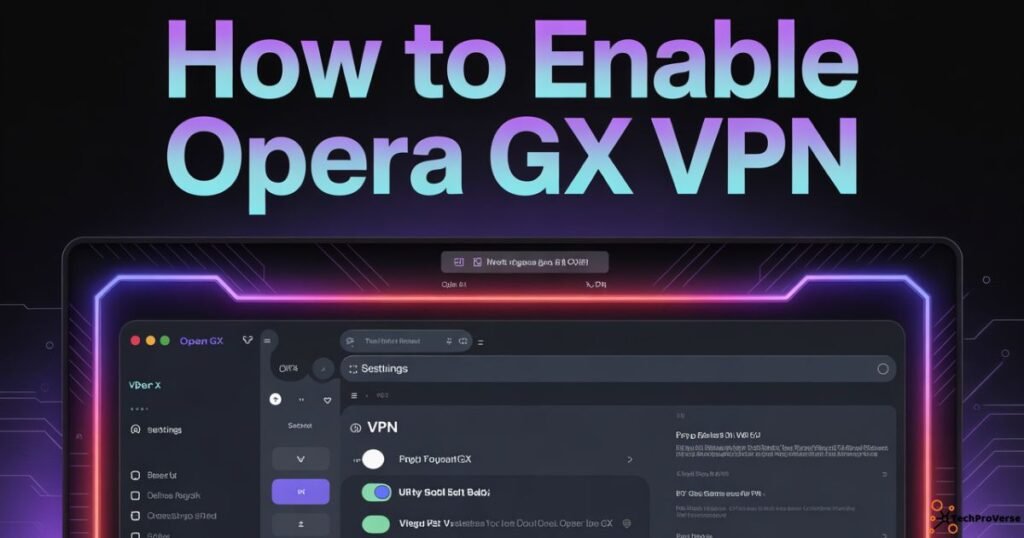
Enabling Opera GX VPN takes only a few seconds. Once the browser is open, go to Settings and activate the VPN power button. After enabling it, a small VPN icon appears in the address bar, letting you know whether you are protected or unprotected.
Enable VPN in Opera GX on PC
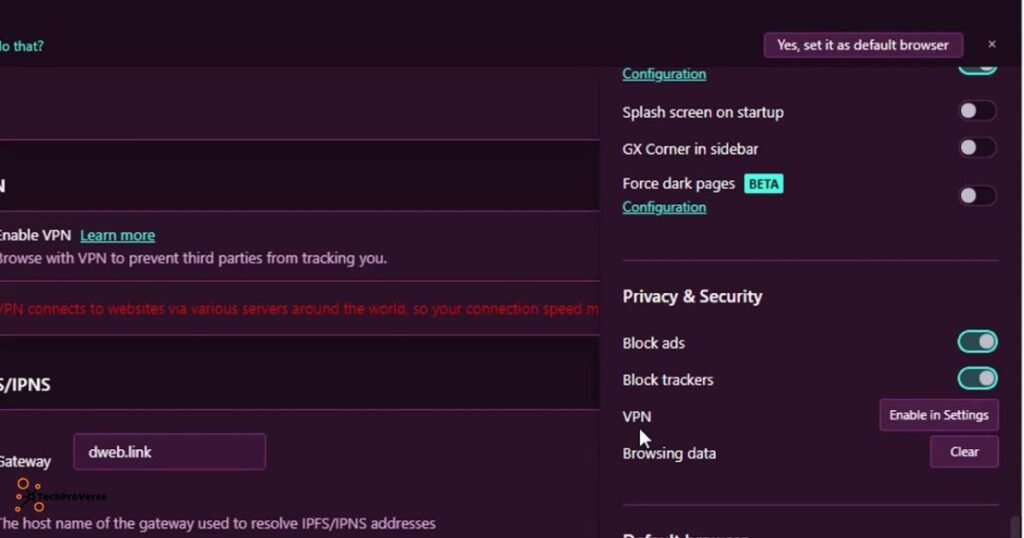
Go to Settings → Privacy & security → toggle VPN ON. A blue icon will appear beside the address bar as confirmation.
Enable VPN in Opera GX on Mobile
Open Opera GX → tap Menu → go to Settings → enable VPN. The VPN icon will appear on the top bar, confirming your protection.
How to Configure Opera GX VPN Settings
Opera GX VPN includes several helpful privacy settings that let you control encryption strength, bandwidth behavior, and privacy toggle options. You can access these settings by clicking the address bar VPN icon.
You can also read Opera’s official documentation for more guidance “Opera Help“
Change Virtual Location
Choose from Americas, Europe, or Asia to access regional content or improve speed.
Enable/Disable VPN for Private Tabs
Turn VPN on only for private browsing if you want normal tabs unaffected.
Adjust Bandwidth or Privacy Controls
Switch between Optimal location, block trackers, or adjust other privacy controls for better speed and protection.
How to Check If Opera GX VPN Is Working
To verify your VPN status, click the VPN icon. If it says “Connected,” your traffic is encrypted. You can also check your IP address using an online tool such as “whatismyip“.
If your location displays Europe, Asia, or Americas, the VPN is active.
How to Use Opera GX VPN for Browsing & Streaming
Once activated, simply browse normally. Your connection automatically routes through encrypted servers. For streaming, switching to a faster region or selecting the Optimal location usually gives better results.
Some streaming platforms may restrict VPN access changing regions often fixes this.
Common Problems & How to Fix Them (Troubleshooting)
If the VPN isn’t connecting, toggle the VPN power button off and on again. Switching regions or clearing cache can also solve most issues.
If certain websites don’t load correctly, disable the bypass VPN for search engines feature.
Limitations of Opera GX VPN You Should Know
Despite being useful, Opera GX VPN isn’t designed for heavy, high security use. It doesn’t provide country specific servers and works only inside the Opera browser. Other apps on your device remain unprotected.
For full device protection, consider standalone VPNs.
Advanced Tips to Improve Opera GX VPN Performance
To improve speed, enable Optimal location, close unused tabs, and activate GX Control to limit CPU and RAM usage. This helps the browser run faster while the VPN is active.
Turning off tracking protection sometimes improves streaming speed.
Best Alternatives to Opera GX VPN
If you need thousands of servers, country level targeting, or full device wide encryption, consider alternatives such as ProtonVPN, Windscribe, TunnelBear, or premium services like NordVPN and Surfshark.
Standalone VPN apps protect your entire device, not just your browser.
Related Headings:
How to Protect Your Data Online: Complete Guide for 2025
How to AI Rig a Model for VTubing
Managed Security Service Provider (MSSP): Complete Guide in 2025
Best Antivirus Software for PC
How to Use Urban VPN in 2025 | Free VPN Service Guide
Zero-Day Vulnerability News 2025: Urgent Threats, Active Attacks & Patch Alerts
Beginner’s Guide to Blue Team Cybersecurity
15 Best Cybersecurity Website Sidebar Topic Ideas
Frequently Asked Questions.
1. How do I enable Opera GX VPN?
Go to Settings → Privacy & Security → enable VPN, and the VPN icon will appear in the address bar.
2. Does Opera GX VPN actually work?
Yes, it works for basic privacy by hiding your IP and encrypting browser traffic, but it’s not as strong as a premium VPN.
3. Can you use Opera GX VPN for free?
Yes, Opera GX VPN is 100% free with no data limits and no subscription required.
4. How to use Opera GX VPN to change location?
Click the VPN icon and choose a region like Americas, Europe, or Asia to switch your virtual location.
5. Is Opera still owned by China?
Opera is owned by Opera Limited, a company with international investors, including some based in China.
6. Why does Opera GX VPN not work?
It may fail due to region issues, cache problems, or browser glitches restart the VPN, switch regions, or clear browser data.

Welcome to TechProVerse! I’m Abdullah, a WordPress and front-end developer, as well as an SEO researcher with 1.5 years of experience. I help websites get built, optimized, and rank higher on Google. Let’s achieve more together!